
basics:viewing_your_schedule
This is an old revision of the document!
Table of Contents
Viewing your schedule
There are two main ways to view your schedule.
- Chart View
- Reception View
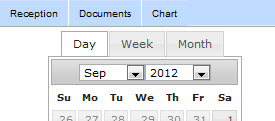
Chart View
To go to the chart view, click the “Chart” button in the top left of the blue top bar.
- In the chart view, you have access to your calendar on the far left side of the screen.
- This allows you to quickly see your daily schedule without leaving the chart view
- Click on the “now” link at the top of your daily schedule to bring it back to the current time.
Reception View
To go to the reception view, click the “Reception” button in the top left of the blue top bar.
The reception view is a more advanced schedule interface for:
- Viewing your daily/weekly/monthly schedules
- Changing the date by previous or next day/week/month
- Seeing multiple staff schedules side by side
- Scheduling, editing and removing appointments
- Dragging patients from the waitlist
- Searching for patients/appointments
basics/viewing_your_schedule.1348476723.txt.gz · Last modified: 2012/09/24 08:52 by jackson


